Showing posts with label windows mobile. Show all posts

Tuesday, December 2, 2014

Little Clever's Learning Apps for Preschoolers

It's simple... it's easy... and most of all, it is fun.  The Apps created by Little Clever speak to your preschooler in a way apps haven't been able to in the past.  The company is on a mission to create apps that help your preschooler develop critical thinking skills coupled with the mechanical skills that are necessary as they grow older in a technical world.  They create games that support children's learning and development through fun, interactive games that help develop hand-eye coordination, pattern recognition, numeracy and language.


Currently, they have two apps.  Both are available for your Apple iOS, Android, Amazon Kindle and Windows Mobile devices -- and couldn't be easier to download and install for your little one.  Both games respect your privacy by not collecting any data about you, or your little one's gaming habits and there are no advertisements at all -- plus work great in "Airplane Mode" so that they can play the games any time, anywhere. 

The first game they offer is completely free!  The 21 Animal Puzzles for Children app features 21 different animal themed puzzles, each with 7 levels of difficulty giving you a total of 147 different puzzles!  These animals can come from one of two areas:  The Farm or The Riverside.  The difficulty on the app can be set to adapt to your child's progression and has some really great, friendly and fun sounds and voices in it!


The second game is not free, but features 101 different animals from 9 different places (The Farm, Riverside, Woodland, In The Sea, Africa, In the Garden, Dinosaurs, Pets and Around the World).  This app would literally be a never ending source of animal puzzles for your preschooler!

Want to know more?  Visit them at LittleClever.Com and check out the promo video below!


~~~~~
Bruce has worked in educational technology for over 18 years and has implemented several 1:1/BYOD programs.  He also has served as a classroom teacher in Computer Science, History and English classes.  Bruce is the author of five books: Sands of Time, Towering Pines Volume One:Room 509, The Star of Christmas, Philadelphia Story: A Lance Carter Detective Novel and 
The Insider's Story: A Lance Carter Detective Novel.  Follow Bruce's Novel releases by subscribing to his FREE newsletter!

Be sure to check out Bruce's Allentown Education Examiner Page, his Twitter and his Facebook!

Wednesday, July 23, 2014

Tips for Using Windows 8 in the Classroom


Myth: Windows 8 is scary and there's nothing out there for my classroom!
Reality: Windows 8 is intuitive and there is an ever-growing list of apps and web-enabled apps that work wonders!

Windows 8 Offers an Immersive Student Learning Experience 
Windows 8 helps schools improve educational outcomes, bring learning to life, and build 21st century skills.  Students interact with devices that have been specifically designed for both touch and mouse, mirroring their real-life experiences and supporting both personalized and collaborative learning inside and outside of the classroom. 

As schools increasingly move to digital content, apps are playing an important role. The Windows 8 app library for schools now includes popular products such as BrainPOP®, Khan Academy®, and Stack the States™, as well as digital textbooks and innovative new apps such as CK-12© math and science, iTooch, and 21st Century Learning Design. 

Many apps are available at no charge, and many have been developed first for Windows 8, with extensive 

support for Common Core and state standards. 

Utilize Award-winning Content Across the Curriculum 
The award-winning BrainPOP apps provide schools with free as well as subscription-based content on topics across the curriculum. They are aligned to Common Core and state standards and are searchable by topic or standard, with special apps available for K-3, ESL, and Spanish-speaking students. Teachers use BrainPOP to introduce a new lesson or topic, illustrate complex subject matter, or review information before a test, while also getting support through a free online learning community. Students find the BrainPOP movies and interactive activities highly engaging. 

Many Free Interactive Video Tutorials 
Khan Academy, another highly regarded app now available to Windows 8 schools, provides free access to high-quality video tutorials and assessments on math, science, and history. It brings lessons to life even for tough topics like advanced geometry and gives teachers great visibility into student progress. Students practice at their own pace, with problems broken down into detailed steps.  According to Anthony Salcito in a 2012 Microsoft in Education blog post, “Khan Academy is beautifully suited for the features of Windows 8. For example, while watching a video tutorial online or downloaded and used offline, students can take notes on their  computer or multitask on another project. Khan Academy for Windows 8 is designed to meet the learning realities of students head-on.”    

Math and Science Help Galore
An exciting new product line for Windows 8 schools looking to enhance the STEM curriculum comes from CK-12 Foundation.  These free high-quality math and science apps personalize learning and avoid the cost of quickly outdated print textbooks.  Rich content aligned to Common Core standards includes customizable digital textbooks called Flexbooks®.  Over 5,000 STEM concepts are available in different modalities such as video, practice, assessment, and real-world applications; collaborative class and study groups; and interactive practice.  According to Margo Day, Vice President, U.S. Education, Microsoft Corp, "These new CK-12 STEM applications for Windows 8 will make learning STEM subjects more engaging and personalized for the needs of individual students across the nation.”    

Oodles of New Apps just for Windows 8
Many applications designed specifically for schools are now being built first for Windows 8. Called the Teacher Collection, these apps take full advantage of Windows 8 functionality. They include:

  • 21st Century Learning Design, a collaborative project with Microsoft that assesses content against the six dimensions of 21st century learning
  • Markbook, for creating complex assessments and detailed reports
  • Lesson Plan Manager, for creating, delivering, and reporting on lessons
  • Scaffolder, for mapping out assessments, projects, or processes and exporting to other formats 
  • Random Student, for selecting individual students or groups 
Digital Textbooks Come to Windows 8
More and more eTextbooks are now available on Windows 8, from 
leading publishers such as Pearson, Houghton Mifflin Harcourt, 
McGraw-Hill, Chegg®, Kno™, and Adaptive Curriculum™. Students 
can search content, watch videos, interact with simulations, 
access web links, create personal study guides, and more.  
The expanding Windows 8 app library for schools supports a 
21st century learning environment and creates an immersive 
experience for students with a full range of functionality. Educators 
can meet new curriculum standards and requirements for 
online testing, while ensuring secure content management. 

I have worked with a number of different Windows 8 desktops, laptops and tablets.  Here are my recommendations for excellent hardware to run Windows 8 in your classroom!

The ASUS ME400C is a powerful, light and easy to use Windows 8 Tablet that runs the full version of Windows 8.
The Microsoft Surface RT is a great alternative that runs the Windows 8 RT version of the Operating System.

~
Bruce has worked in educational technology for over 17 years and has implemented several 1:1/BYOD programs.  He also has been a classroom teacher for various subjects.  Bruce is the author of five books: Sands of Time, Towering Pines Volume One:Room 509, The Star of Christmas, Philadelphia Story: A Lance Carter Detective Novel and The Insider's Story: A Lance Carter Detective Novel.  Follow Bruce's Novel releases by subscribing to his FREE newsletter!

Sunday, July 6, 2014

Surviving and Thriving in a Multi-Platform Environment

Here is a wonderful info-graphic from our friends at Tech&Learning and CDWG about the nuts and bolts of being in a multi-platform environment (since most of us are!).  


~~~~
Bruce has worked in educational technology for over 17 years and has implemented several 1:1/BYOD programs.  He also has been a classroom teacher for various subjects.  Bruce is the author of five books: Sands of Time, Towering Pines Volume One:Room 509, The Star of Christmas, Philadelphia Story: A Lance Carter Detective Novel and The Insider's Story: A Lance Carter Detective Novel.  Follow Bruce's Novel releases by subscribing to his FREE newsletter!

Monday, June 23, 2014

Got a new Smart Phone? Start HERE!

If you are into techie stuff like me, few things top the excitement of powering up a brand new smartphone for the
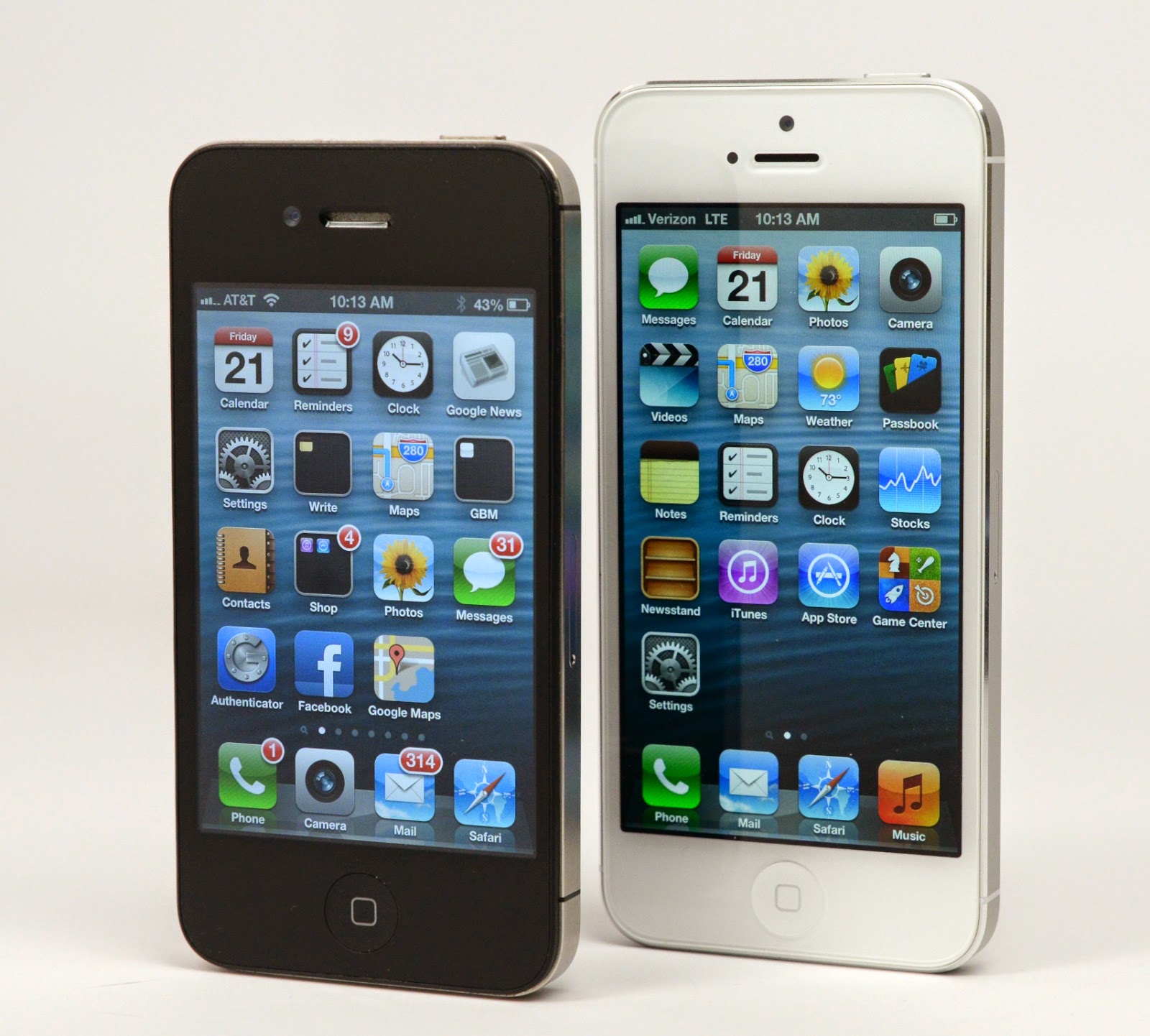
very first time and diving right in. By the nature of my work, I have a well-established routine for setting up a new phone when I review it. However, a phone that's going to stick around for awhile gets a little more forethought and effort.  Here are some great guidelines for newbies and pros alike. This isn't a "how-to", but more of a "what to do" kind of article.  I won't get into the step-by-step details about the phone, or advise you to download specific apps (of course you will). Rather, I'll point out some general categories you should think about when protecting and customizing your investment.


Tackle Your Settings -- All of Them
Beeps, chimes, and buzzes annoy me. When phones constantly chirp in an office environment, it can irritate coworkers, too.  So the very first thing I do when setting up a new phone is to adjust my volume profile, choose my ringtones, and shut down haptic feedback (unless it's on a Windows Phone -- that I can take). It's for my own sanity, and for the sanity of the people around me.

Depending on the phone, I also pull up settings from the keyboard to shut down key press tones and other haptic feedback.  But don't stop there. I recommend systematically going through the settings. Not only will you fine-tune your phone's behavior right from the very beginning, you'll also learn a tremendous amount about your handset's capabilities.

Phone-makers slip controls for the most interesting software extras in the settings menu, and sometimes in submenus as well. I always peruse this area from the get-go to learn about the more hidden options for everything from motion and gesture controls to call blocking.

This is also where you'll find any options for simple startup mode (found on some Android phones), a benefit for those people who prefer a less-cluttered way to experience Android. A setup wizard may also let you make this selection if it exists.


Check for Updates
Sometimes phones ship with one version of the operating system, but by the time it lands in your hands, there could be an update waiting in the wings. (Usually Androids)

This is an easy check from the Settings menu, so it's worth looking just to get the update out of the way, especially if it means restarting your phone.

Even if you don't have an OS update, it's worth checking for individual app refreshes for essential and preloaded programs. If there are more than a few of these, the update could take some time, or even require a reboot. I like to get this out of the way early because, especially with Android, updating apps like the Google Play Store, can somewhat alter the setup experience.


Secure Your Device
Loading up your new device with games, apps, and music sounds a lot more fun than taking the time to enact security measures on your device, but I can't stress how important it is to do this. Right now. Before you get distracted or forget.

There's a lot to remember in this category, check out this primer on security. It is very well done and laid out by OS.

It's important to know what all of your options are, and institute them. In the panic-inducing event that you misplace your phone or lose it to theft, a basic understanding of the measures you set up and how to remotely lock, track, and even wipe your phone will pay off more than you can imagine. This also goes for recovering your assets, like precious photos.

Hook Up To The Cloud!
Are you doing iCloud?  Microsoft OneDrive?  Dropbox?  Pick one!  But hey -- it might even be built in!  Your phone may alert you that you have the option of turning on cloud storage or syncing functionality for your contacts, calendar, photos, music, and so on. It's easy to dismiss these pop-ups in the pursuit of, say, choosing prettier wallpaper or theme colors, but as with updates and security, this is one of those things you should take care of sooner rather than later.

Not only are you making it smoother to share your assets among devices like your tablet and laptop, you're also taking a step toward safeguarding your digital property if you lose your phone, and making it easier to repopulate a future device with your photos and the like.

Likewise, you should also pay attention to prompts for syncing content, and specifically, you'll want to keep an eye on overly enthusiastic syncing features that you don't want turned on by default. Android phones are the main culprit here. If you don't watch what you press, your phone could upload all your photos online, turn on social networking, and generally overshare information you'd rather selectively distribute yourself.


Customize the Look and Feel
So you've secured your device and gotten to know your phone? Great. Now you should customize it.

Go nuts. Download new wallpaper, explore app launchers, group apps into folders, and jump into the world of rooting your phone and applying custom ROMs if you'd like.

Do keep in mind that if you go the rooting or jailbreaking route, you're violating your warranty, so this isn't an endeavor to attempt on a whim. The good news is that there's a tremendous amount of step-by-step tutorials and support articles on the Internet that can walk you through everything from gaining administrative access and installing ROMs to reverting your phone back to factory conditions. Still, it is a risk, so approach with caution.
One final area of customization I'd address are preloaded apps, better known as bloatware. Most of the time these won't budge; they were included as part of the phone-maker's agenda, or as part of a partnership agreement. Sometimes, though, you can force quit them, disable them, or with iOS and some Android phones, rearrange their icons into the dark recesses of your home screen or app tray to all but ignore them.


Plan For Resale
I don't blame you one bit if your dead-last instinct with your new phone is to think about its afterlife. But trust me, a year or two down the line -- or even longer -- you'll be thankful you did.

Especially if you wind up reselling your phone directly to another human (and not to an organization), you'll want to keep the box in good shape, and yep, those structural cardboard inserts, as well. It makes a better presentation that way, and the condition of your phone and its accoutrements can net you a higher sale price.
I'd also strongly recommend getting a sturdy case to protect your phone. This is as much for your day-to-day benefit as it is to safeguard the phone's resale value down the line. Sure, your own self-expression in choosing a case still takes precedent, but if you're going to wind up recouping your costs when you're ready to move on, you might as well get the most for your handset that you can with a case that actively shields the phone's vulnerable screen and corners, instead of just simply looking good.


~~~~
Bruce has worked in educational technology for over 17 years and has implemented several 1:1/BYOD programs.  He also has been a classroom teacher for various subjects.  Bruce is the author of five books: Sands of Time, Towering Pines Volume One:Room 509, The Star of Christmas, Philadelphia Story: A Lance Carter Detective Novel and The Insider's Story: A Lance Carter Detective Novel.  He also has a new novel coming out in June 2014, The Kill Commission.  Follow Bruce's Novel releases by subscribing to his FREE newsletter!

Thursday, May 1, 2014

2 Things A School Wireless Network *Must* Have

The tide is shifting, and it isn't shifting slowly.  As the old axiom goes, the cost of technology goes down over time.  While that is not exactly true, the cost for effective wireless networking has indeed gone down.  It has come down enough that schools all over the country are not only investigating things like 1:1 and BYOD, but they are planning for them -- and moving forward on these initiatives.  There are many things to consider when moving into a 1:1 or BYOD scenario in your school, and over the next few weeks I will attempt to address the high points to help enable you to plan for and implement the best program possible for your constituents.

In this article, I am going to cover the top two things that are often overlooked when planning what is considered the most essential part of any BYOD or 1:1 initiative: The Wireless Network.  Everyone would agree that the wireless network is the most visible portion of any type of classroom networking technology initiative.  Most teachers, students and parents have a Netgear or Apple AirPort in their home that works quite nicely for them, and think that wireless in a school is exactly the same thing.  If you have not heard it before now, I'm here to tell you it is not -- not even close.  There are a vast number of things to consider when deploying a wireless network in a school environment that do not apply to your home.  And today's article will tackle the two biggest items that most school's overlook or do not plan for appropriately.  They are the wired network and capacity planning.


The Wired Network

If you walk into any school you will get a myriad of responses about how good (or bad) the network is.  Some people will tell you it is fine, others will complain that it is slow and still others might have periodic complaints.  If you think that is bad -- try throwing a wireless network on top of that, and see what you get from your constituents.  They complaints will simply magnify if you haven't done your homework.  So what constitutes a "good" network?  I'm not sure there is any one answer that is more detailed than one that allows for the users to do what they need to do, in a reasonable amount of time, with limited to no downtime due to network failures.  What does that mean?  That is different for every institution.  However, the one constant is that it should always be online and available for use.  And there are some minimum considerations when thinking about a wired network that is built to support wireless and BYOD or 1:1.
On your wired network, each user (generally) has one device per network port.  Yes, sometimes phones or other
devices will share a port, but if you averaged it out you would likely happily round it down to one device per port.  If that is not true, IE: you have one port per room with ten port hubs in each classroom, then stop what you are doing and address that now.  The answer may be, "When we install wireless they all go away," and that is fine.  But you must have a plan for fixing those glaring issues.  One wired device per port, period.
Your wired network should have the capability of delivering 1GB of bandwidth to your wireless access points.  Why?  Because unlike your wired network which only has one device per port, the one port that you plug in your wireless access point to will be serving anywhere from 1 to 30 devices at the same time.  Like it or not, 100MB simply is not going to do the trick.  That does not mean you have to necessarily upgrade your entire network, but you will need to ensure that the wireless access points are plugging into the GB ports.
Your wired uplinks between closets and buildings must be bigger than 1GB.  Yes, you read that right.  Ideally, you'd have fiber between all buildings and closets.  That is not always possible.  If it is not, you'll switching equipment capable of multiple GB connections aggregated together to allow for more than 1GB of bandwidth to leave the location and travel towards its destination.  With some fiber connectivity ramping up to 10GB, it is certainly something to look into.  And small enterprise class GB switches can be had for as little as $400 each for 48 ports.  It does not have to cost you a fortune, but it will cost something.
Your Internet connection must be beefy enough to support your users needs.  I can't stress this enough.  The bulk of your classroom traffic in the future is going to be going out to the Internet.  Users will be storing things in the Cloud, they will be accessing databases in hosted environments and watching YouTube videos.  The model of User to Server to User is dead.  If you aren't already planning for this -- you need to now before you spend money on a robust wireless system that gets bottled up at your Internet connection.  What is adequate?  Well the answer depends on your use, but there is no school that can survive on less than 20MB download and 10MB upload anymore.  And that is certain not ideal.  Most Internet providers are capable of offering 50MB of guaranteed bandwidth to you at a reasonable price.  And when I say reasonable, I mean at a fraction of what that T1 or T3 is costing you now.  Get ride of the T1/T3, save your school some money and be an Internet hero immediately.  Do your best to stay about from the $50 or $70 a month "business class" connections.  Most providers do not guarantee any bandwidth with those connections, so your performance will vary.  But -- hooking up to a 20MB guaranteed fiber Internet connection with a "business class" cable modem as a backup is a great plan.  It offers a lot of bandwidth with a backup in case of an outage.  In this area, this combination can cost as little as $500 per month.  Compare that with the $1200 your paying for one T3 at a fraction of the bandwidth.
Putting all of these things together will enable you to support just about anything your teachers, students or administrators can throw at your network.


Capacity Planning
OK, here is another GOTCHA in the wireless network planning world.  You've walked around... done a wireless survey and figured out how many access points you need to cover your classrooms.  BUT, have you thought about how many devices are going to be in each classroom?  Or auditorium?  Or even the gym?  In 2009, The Gartner Group reported that the average person has 1.6 wireless devices on them at any time.  In 2012, they upped that to 3.  That's 3 devices per user, per location.  That means that if you have an average class size of 20 students, plus your teacher -- you could have as many as 63 devices in that one classroom hitting at your wireless access points.  One of the biggest pitfalls that I've seen is when a tech coordinator says, "This access point is covering these 4 classrooms."  And when I ask what the average class size is and then do the math for them, it quickly explains why their wireless network access is spotty and sluggish. 
So when you are talking to wireless integrators it is important to note the coverage, but also how many devices that the access point can handle at one time.  The things to consider with that are the frequencies -- is this wireless access point 5GHZ capable?  This is important because every access point on the market today will support 2.4GHZ, which is that most common frequency.  And there are up to 13 usable channels in the 2.4GHZ frequency range, while the 5GHZ frequency has up to 50 usable channels.  Now, these numbers are different based on the hardware and software being used to run the access point.  For instance, some vendors use one of those channels in order to broadcast between each other to check for usage.  So, it is important to ask your wireless vendor about this.  This is important because no two wireless devices can use the same channel at the same time.  A good enterprise level wireless network will move things around, and only use the channel for the actual amount of time that the device needs it -- but you can still see that the 5GHZ frequency allows for a lot more flexibility than the 2.4GHZ.  It is also important to note that you can't necessarily tell if an access point supports 5GHZ simply by the protocols used.  802.11b and 802.11g use the 2.4GHZ range exclusively, while the 802.11a protocol uses the 5GHZ band exclusively.  But, the 802.11n can use both.  That means that if you are buying 802.11 b/g/n access points, you are likely only getting the 2.4GHZ range, while the 802.11 a/b/g/n will include the 5GHZ frequency.  It is worth noting that the 802.11ac protocol only functions in the 5GHZ range.
The other big thing to consider when sizing the wireless network is the number of radios in the access point.  For instance, if you have 2 radios that are 802.11 b/g/n access points you can probably comfortably support 15-20 devices at any one time.  If you have 3 radios, you kick it up to 25-35 at one time.  If you have 802.11 a/b/g/n radios you can probably move those numbers up into the 50s comfortably - as long as your wired network can support that kind of throughput.  It is worth noting that the better 802.11 a/b/g/n access points have more than one network port on them.  If you get those, you can push 2GB per access point.  So, you can see how this bandwidth quickly adds up?
I hope this has proven to be helpful and educational while you are thinking about your BYOD, 1:1 and wireless network.  Please feel free to post any questions or follow up to this below.  I'm happy to answer!
~~~~~


Bruce has worked in educational technology for over 17 years and has implemented several 1:1/BYOD programs.  He also has been a classroom teacher for various subjects.  Bruce is the author of five books: Sands of Time, Towering Pines Volume One:Room 509, The Star of Christmas, Philadelphia Story: A Lance Carter Detective Novel and The Insider's Story: A Lance Carter Detective Novel.  He also has a new novel coming out in June 2014, The Kill Commission.  Follow Bruce's Novel releases by subscribing to his FREE newsletter!

Wednesday, April 23, 2014

Ghost Hunting on your iPad, Android or Windows device? YES!

Here's something neat to add to the list of "useful" things your iPhone, Windows Phone and/or Android device can do -- GHOST HUNTING!

Spud Pickles has a "suite" of Ghost Hunting apps called Ghost Radar: Classic, Ghost Radar: Legacy and Ghost Radar: Connect.  They also have an app called Ghost Radar: Tour that is the official Ghost Tour app of the Augusta Ghost Trolley -- very cool!
Some of these are free, some are not...


Ghost Radar: Classic
Price: Free

Ghost Radar® is the original portable application designed to detect paranormal activity for the iPhone, iPod touch, iPads. Ghost Radar attempts to detect paranormal activity by using various sensors on the device on which it is running. Like traditional paranormal detecting equipment, Ghost Radar has many sensors available to it on mobile devices. However, traditional paranormal equipment can be easily fooled when simple mundane bursts of normal energy occur. Ghost Radar sets itself apart by analyzing the readings from sensors giving indications only when interesting patterns in the readings have been made.
Ghost Radar: Classic is the original. Don’t go for knock-offs and copycats, this is the original and best free ghost detection app.  If you want the newest/coolest versions, you'll have to opt for the pay versions of Ghost Radar: Legacy, and Ghost Radar: Connect.

Ghost Radar: Legacy
Price: $0.99Ghost Radar is a portable application designed to detect paranormal activity. Currently supported portable devices include the iPhone, iPod touch, iPad, BlackBerry, Android, and Windows Phone 7 devices. Ghost Radar attempts to detect paranormal activity by using various sensors on the device on which it is running. Like traditional paranormal detecting equipment, Ghost Radar has many sensors available to it on mobile devices. However, traditional paranormal equipment can be easily fooled when simple mundane bursts of normal energy occur. Ghost Radar sets itself apart by analyzing the readings from sensors giving indications only when interesting patterns in the readings have been made.
Ghost Radar: Connect
Price: $1.99The newest Ghost Radar app gives you all the great features, detection, and control of the previous apps, with some awesome new enhancements. Ghost Radar: Connect allows you to record more of your findings, and share them with your friends, all while maintaining the familiar features of previous Ghost Radar apps.
So - if you are interested in some ghost hunting, check out these apps and take a walk around.  You might be surprised at what you find - especially if you teach in one of those nifty, old, historic schools!
Bruce is the author of five books: Sands of Time, Towering Pines Volume One:Room 509, The Star of Christmas, Philadelphia Story: A Lance Carter Detective Novel and The Insider's Story: A Lance Carter Detective Novel.  He also has a new novel coming out in June 2014, The Kill Commission.  Follow Bruce's Novel releases by subscribing to his FREE newsletter!

Friday, April 4, 2014

Microsoft's Cortana vs Apple's Siri - It's On!

Since its launch as an app in 2010, Apple's Siri has been one of the "killer apps" on the iOS platform.  The voice recognition and searching capabilities have launched as many positive uses as it has negative and amusing spoofs.  I know that my kids sit and try and think of funny things to ask Siri to look for on the Internet.  Apple's audio digital assistant has quickly become the benchmark in the industry, and many of us rely on Siri to look up directions to a restaurant, find Reggie Jackson's batting average in 1980 (Siri tells me it was .300, by the way.  And his highest batting average in any single season), or to simply "Call Home".  Google and Microsoft haven't entered the fray in any meaningful way that has had any real impact that can be measured with Siri.  Yes, there is Google Now... but who do you know that actually uses it?  I guarantee you know people who use Siri on a semi-regular basis.

But now Microsoft has made a move to usurp that throne, and it might actually work.  With the release of Windows 8.1 with Cortana, Windows Phone users can finally look for restaurants, check the weather and make appointments with an anthropomorphized search engine as well.
But... which one is the one that will help you organize your life, on-track with your day and find the nearest Starbucks (with turn-by-turn directions)?

Cortana
Windows 8.1
Powered by: Bing
Sounds Like: Jen Taylor, the woman who voiced Master Chief's holographic love interest from the Halo franchise.
What it Does: Many of the same things that Siri does. It can send you reminders from your calendar, send messages, look up who won the Lakers game last night (hint: probably not the Lakers) and play music.
Cortana does have a few unique features. It stores your personal information in a "Notebook" that helps it be pro-active. For example, it has some great location aware things built-in that allow will notify you if your flight is on-time or delayed and give you suggestions regarding traffic on your to the airport for that flight.
It also has some nice personalized options. You can set "quiet hours" when only certain people are allowed to call or text you. It also lets you set reminders for specific people, so next time John contacts you, a notice will pop up saying "John owes you lunch" so you can answer the phone with, "Hey, where we going for lunch?"
Siri
iOS
Powered by: Wolfram Alpha, Bing
Sounds Like: Susan Bennett, a voice-over actor from Atlanta.
What it Does: Most people are fairly familiar with what Siri can do at this point. That includes the ability to launch apps, send a text, dictate notes and more.  It was certainly the pioneer in the market, but a couple of years and some rivals make it seem like old hat now.
How well will Cortana hold up to the every day wear and tear of a teacher keeping track of a rotating daily schedule, parent-teach conferences, homework assignments and when Starbucks is open?  The official release date for Cortana is "late April".  So we won't really know how well it works in the wild for a couple of months.  But keep in mind, Siri also has some tricks up her sleeve, including CarPlay integration, which means drivers of some 2014 Ferrari, Mercedes-Benz and Volvo models will be able to bring her up with a button on their steering wheel... and that means we may see some real advances in her, too.  

Bruce is the author of five books: Sands of Time, Towering Pines Volume One:Room 509, The Star of Christmas, Philadelphia Story: A Lance Carter Detective Novel and The Insider's Story: A Lance Carter Detective Novel.  He also has a new novel coming out in June 2014, The Kill Commission.  Follow Bruce's Novel releases by subscribing to his FREE newsletter!