Showing posts with label apple. Show all posts

Thursday, October 2, 2014

Keep Your Class Going with MobileMunky

One of the biggest challenges that teachers face in a 1:1 classroom environment is the "My battery isn't charged!" problem.  Some schools have thought ahead a bit and put in charging stations in classrooms or common areas, but what happens when you are right in the middle of class and that iPad or Android tablet just dies...?

You pull out your MobileMunky!


MobileMunky is a small, light and easy to use device that allows you to charge your mobile devices on the fly -- and continue to use them at the same time!  Obviously, they will charge faster if you don't use them -- but the great thing about the MobileMunky (as opposed to other devices) is that it delivers just enough juice to use the device AND charge it.  Oh... and did I mention that it has *2* USB ports on it for charging more than one device at the same time! 

This small, yet powerful device, weighs in at about .5 a pound and is an easy to handle small brick form factor.  The device is small enough to pull put, put on a desk or table and allow your students to keep on working without missing a beat!  And then after you've used the MobileMunky, it is easily charged by plugging it into any power source -- and it charges up pretty quickly unlike some other mobile chargers.

If you are in need of a mobile charger for a trip or for your classroom, this is priced right and everyone can have readily available power at their finger tips!  Take a look on Amazon!


~~~~~
Bruce has worked in educational technology for over 18 years and has implemented several 1:1/BYOD programs.  He also has served as a classroom teacher in Computer Science, History and English classes.  Bruce is the author of five books: Sands of Time, Towering Pines Volume One:Room 509, The Star of Christmas, Philadelphia Story: A Lance Carter Detective Novel and 
The Insider's Story: A Lance Carter Detective Novel.  Follow Bruce's Novel releases by subscribing to his FREE newsletter!

Be sure to check out Bruce's Allentown Education Examiner Page, his Twitter and his Facebook!

Wednesday, September 17, 2014

What's New in iOS 8? Here's a Run Down!


Have you downloaded iOS 8 yet?

No?

Well, I downloaded it and here is a quick round-up of what's new!


 Photos
  • Photos are be integrated with iCloud so that every photo and video you take now lives in iCloud 
  • You can access and download them anytime from your iPhone, iPad, iPod touch, OS X devices or the web.
  • It can automatically keep the original high-resolution photos and videos in iCloud and leave behind lightweight versions that are perfectly sized for each device.
  • To help you sort through all the photos in iCloud, you can search by location, time, and albums you’ve set up. And there are smart editing controls that help you quickly edit and crop photos from your device.
  • Your changes are immediately uploaded to iCloud and visible on your other devices. And the edits are nondestructive, so you can always revert back to your original if you change your mind.
     
Messages
  • You now will be able to capture and send audio from within the message editor.  There is a new microphone button that let's you record directly into your conversation.
  • Users who receive a voice recorded message can raise the phone to their ear to hear the message.  
  • Video messages can be sent in almost the same way, and watched directly within the Messages app.
  • it's now possible to send multiple photos or videos in a single message instead of requiring a separate message for each photo.
  • You can start a group conversation and give it a name.
  • Leave the conversation whenever you want or turn on Do Not Disturb and then read through the messages when you have time.
  • You'll also be able to share your location in the middle of the conversation by displaying a map of your location right in your message.
     
Design
  • Interactive notifications (that pop up on your screen) let you take action on texts, email, calendar invitations, reminders, and even messages from apps like Facebook right from their notification banners — without leaving the app you’re in.
  • Double tapping the home button will not only show your most recent open apps (multitask bar), but it will now show, at the top of the screen, your most recent contacts and favorite contacts.  You will be able to tap a recent contact to call, text, or start a FaceTime call.
  • The Mail app has a new swipe down gesture that minimizes an email being composed to let a user do things like quickly copy and paste between messages.  You can simply tap the minimized draft message to resume editing.
  • Mail is now smarter, recognizing information like dining reservations, flight confirmations, and phone numbers, allowing it to be add to Calendar, Contacts, and other relevant apps.
  • Safari will now let users tap the Sidebar to see your bookmarks, Reading List, and Shared Links.

QuickType
  • Now when you type, you’ll see choices of words or phrases you’d probably type next, based on your past conversations and writing style.
  • QuickType will learn your email and text style as well as learn your conversation style with your contacts and predict text you will use during your conversation.
  • Your conversation data is kept only on your device, so it’s always private.

Family Sharing
  • Family members (up to 6) get immediate access to each other’s music, movies, TV shows, books, and apps. Download what you want with a tap anytime you like. All without having to share an Apple ID or passwords.
  • This feature allows family purchases to be bought with the same credit card and it allows children to initiate purchases that must be confirmed by a parental device.
  • Family Sharing automatically sets up a family photo stream where you can share photos, videos, and comments. And everything stays up to date on everyone’s devices.
  • It also lets families share a calendar and reminders.
  • Family Sharing can automatically share your location with your family members and show you where they are, too.

iCloud Drive
  • iCloud Drive lets users store presentations, spreadsheets, PDFs, images, or any other kind of document within iCloud, making them accessible on any Mac or iOS device. It functions similarly to Dropbox or OneDrive, with a dedicated folder within Finder on OS X Yosemite that users can drag files to.
  • Edits you make on one device appear on all of them.
  •  iCloud Drive now allows apps to share files, a file can be accessed in one app and then manipulated in another.

Health
  • Health app functions as a dashboard that aggregates data collected from various health and fitness apps.
  • Connect Health app to your medical provider's app to communicate your data to your doctor.

Continuity
  • The Handoff feature now let's you can start working (ex: writing an email) on your iPhone and pick up where you left off when you sit down at your iPad or Mac.
  • This all happens automatically when your devices are signed in to the same iCloud account. Use Handoff with favorite apps like Mail, Safari, Pages, Numbers, Keynote, Maps, Messages, Reminders, Calendar, and Contacts.
  • Now your Mac or iPad can make and receive phone calls on by proxy to your iPhone as long as your iPhone is running iOS 8 is on the same Wi-Fi network.
  • Incoming calls show the caller’s name, number, and profile picture.
  • You can click or swipe the notification to answer, ignore, or respond with a quick message.
  • Making a phone call from your iPad or Mac is just as easy. Simply tap or click a phone number in Contacts, Calendar, or Safari. It all works with your existing iPhone number, so there’s nothing to set up.

Spotlight
  • Spotlight is now able to show suggestions from the Internet, iTunes, App Store, locations nearby, and more. For example, when searching for a movie using Spotlight, the search results will include both movie showtimes and relevant iTunes link


     Siri

  • Siri can now be activated with the voice command "Hey Siri," and the voice assistant also features integration with Shazam, identifying songs upon request (which gives you the opportunity to purchase that song from iTunes).
Have you found any features I missed?  Comment below!

~~~~~
Bruce has worked in educational technology for over 18 years and has implemented several 1:1/BYOD programs.  He also has served as a classroom teacher in Computer Science, History and English classes.  Bruce is the author of five books: Sands of Time, Towering Pines Volume One:Room 509, The Star of Christmas, Philadelphia Story: A Lance Carter Detective Novel and 
The Insider's Story: A Lance Carter Detective Novel.  Follow Bruce's Novel releases by subscribing to his FREE newsletter!

Be sure to check out Bruce's Allentown Education Examiner Page, his Twitter and his Facebook!

Tuesday, September 16, 2014

Common Core Math Standards Testing App for iOS and iPad

Common Core...  love it or hate it, it is here.  There is certainly a wealth of debate on the Internet about whether Common Core is good... bad... or something else.  But, if you have a student in public school today they are being taught from the Common Core.  And even independent schools are taking their cues from Common Core.  So -- when an app (or series of apps) come along that help teachers, students and/or parents with Common Core, that is a good thing!

Enter an app from BrightMinds called Common Core State Standards Grade 3 Practice Math Test.  This app runs on any iPad running iOS 4.3 or above (which is any iPad) and puts the student through a series of grade appropriate, Common Core consistent questions that help prepare the student and asses the students level of knowledge within the 3rd grade Common Core standards.


As you can see by the screen shot above, the app is very easy to use and laid out so that anyone can read the screen and answer the questions.  The skills that are testes are consistent with the standards and tell the student and teacher what needs to be addressed and improves upon before the actual tests are given.  The specific areas that the test hits home on are Operations and Algebraic thinking, Numebers & Operations in Base Ten, Numbers and Fractions, Measurement & Data and Geometry.

This app looks perfect for any school that has iPads and is looking for an easy way to assess students progress in the all important area of mathematics.  And for $1.99 it is positioned in a good place for anyone to give Common Core State Standards Grade 3 Practice Math Test a try.


~~~~~
Bruce has worked in educational technology for over 18 years and has implemented several 1:1/BYOD programs.  He also has served as a classroom teacher in Computer Science, History and English classes.  Bruce is the author of five books: Sands of Time, Towering Pines Volume One:Room 509, The Star of Christmas, Philadelphia Story: A Lance Carter Detective Novel and 
The Insider's Story: A Lance Carter Detective Novel.  Follow Bruce's Novel releases by subscribing to his FREE newsletter!

Sunday, September 14, 2014

iOS 8 - What iPads and iPhones are Compatible with iOS 8?


Apple has been talking about iOS 8 for a while, but I still get tons of questions about what devices will be able to run the newest iteration of Apple's mobile device operating system.  There have been a lot of rumors and talk about this -- but with Apple's big announcements last week that included the Apple Watch (I want one) and new iPhones -- the cat is out of the bag!  This is especially important for schools and classrooms who have invested in 1:1 iPad programs!  Get ready now!

Here is the breakdown of iOS Compatible Devices:


Click to enlarge

The compatible devices are:
iPhone 4S
iPhone 5
iPhone 5C
iPhone 5S
iPhone 6

iPhone 6 Plus
iPod Touch 5th Generation
iPad 2
iPad 3
iPad 4 (Retina)
iPad Air (Retina)
iPad Mini
iPad Mini 2 (Retina)

With the release date in looking in October, now is the time to check your device and make sure it is on the list!  Remember that just like iOS 7: Siri will only be available on the iPhone 4S and above, iPad 3 and above and iPad Minis.

So get ready to say, "Hey Siri" and iOS 8 on!


~~~~~
Bruce has worked in educational technology for over 18 years and has implemented several 1:1/BYOD programs.  He also has served as a classroom teacher in Computer Science, History and English classes.  Bruce is the author of five books: Sands of Time, Towering Pines Volume One:Room 509, The Star of Christmas, Philadelphia Story: A Lance Carter Detective Novel and 
The Insider's Story: A Lance Carter Detective Novel.  Follow Bruce's Novel releases by subscribing to his FREE newsletter!

Thursday, August 14, 2014

Changing a Lost OS X Administrator Password


It happens every so often that you walk into a tech office and no one knows the password to the Macintosh OS X server or workstation that you need to use to do what you have to do.  Or let's say you just bought that Macbook at a yard sale and you get it home and the password isn't what the guy said it was... What most people don't know is that changing the administrative (or any) account password is easy-as-pie.

Back before Apple stopped putting their OS on CD/DVD, you could boot off the DVD and go into the Password Reset Utility.  You can still do this with OS X 10.9 if you happen to have it on a USB drive ready to go, but many (even us in IT) don't have those handy... you can do it without that!  


Here's how you accomplish this amazing feat of hackery...

The first thing you need to know how to do is boot into Single User Mode.  This is the key to any such operations.  To do this on any Macintosh, turn on the computer -- as soon as the screen turns that grayish white color hold down Command-S.  Hold that until the screen turns black and starts to list out the UNIX style list of things that are happening.  This will dump you at a command prompt.  The look of this prompt can vary.  But we can go from here... do not let these UNIX-style commands intimidate you.

On ALL versions of Max OS X start with these commands to check and mount the file system:


fsck -fy

mount -uw /

From here the next command(s) differ based on the version of OS X that you are working on.  Apple moved some things around over time...

For OS X v10.0-10.7.2:

passwrd username   -- where username is user that you are changing the password for.

For OS X 10.7.3 and later:

launchctl load /System/Library/LaunchDaemons/com.apple.opendirectoryd.plist
passwrd username   -- where username is user that you are changing the password for.


Don't know the username?  Hey.. it happens!  Not every Mac has admin on it -- in fact, many do not -- so there may only be one account and it might be auntjennie.  Here's how you find out what accounts are on the computer.  At the command prompt:

ls /Users

This will give you a list of all the users that are on the computer!

Using this information, you should be able to get into any Macintosh based computer running OS X without destroying any data!


~~~
Bruce has worked in educational technology for over 18 years and has implemented several 1:1/BYOD programs.  He also has been a classroom teacher for various subjects.  Bruce is the author of five books: Sands of Time, Towering Pines Volume One:Room 509, The Star of Christmas, Philadelphia Story: A Lance Carter Detective Novel and The Insider's Story: A Lance Carter Detective Novel.  Follow Bruce's Novel releases by subscribing to his FREE newsletter!

Thursday, July 24, 2014

iPads or Androids in the Classroom?


Yesterday I posted about the great strides Windows 8 has made towards becoming a viable classroom tablet alternative -- so today I thought I'd tackle the incumbents, Apple's iPad and the myriad of Android devices that are out there.  In the phone sector, the battle between iOS and Android continues to rage on... people loving one and hating the other.  So the question is... does the same sentiment exist in the tablet world?  Not as much, but both are a viable option in the classroom as long as you buy good hardware.  You know you are getting good Apple hardware, but beware of cheap Android tablets -- you tend to get what you pay for in Android-land.

So the question looms: What tablet is best for my technology use in the classroom?

iPads to date seem to still be the leaders in the choices of tablets schools are investing in for their students. Apple announced that its share of the education tablet market reached 94% at the end of its third quarter in 2013.

Apps
With tablets and many educational curriculum today, it’s all about the apps. We know this; Apple leads the charge in terms of amount of applications available. If you have an Apple device you can pretty much assume that any major app can be available for download and updates will be available as early as anyone else.

With an Android device you are likely to get most major apps but there are exceptions and the main difference lies in the quality of the applications, wait time for updates with wait times at weeks or months after the iOS version is available.  For the most part, Android has basically caught up to Apple when it comes to e-book applications.

So, perhaps, for what your classroom needs, the Android has all available apps. Perhaps not... it is imperative that you check all of that out before committing to one or the other.

Price
In the almost twenty years working with schools, I've yet to work with a school who have stated they have unlimited budgets for technology in their classrooms. Schools have come to recognize the importance of spending money on tech, but budgets have not necessarily grown in that area.  When it comes to price Android devices can be a bit more budget conscious than the iPad. You can get a current generation Android tablet with plenty of processing power for around $250.00 which comes in much cheaper than the iPad mini at $329.00.

It is imperative that schools stay away from the cheaper $99 and $129 Android devices.  They are, generally speaking, built with inferior hardware, have poor battery life and sometimes do not even have apps like Android Market or Amazon Marketplace on them.  It is worth noting that mobile device management may be important in your school, and that carries a significant price tag.

Ease of Use
Usability in a tablet is a very important aspect to consider when making a decision. iPads tend to be a perfect tablet for those a bit intimidated by the technology with its streamlined operating system that is simple to use. The iPad as a whole has fewer bugs and is known to run smoother, thus making it generally a better user experience.

On Android tablets, things are little more difficult to figure out so it will take hitting up the “Settings” feature a few times to really familiarize yourself with the features. Tutorials and general sessions for staff and students can easily solve this issue if Android is the tablet choice you are leaning towards.
The good news is technology is the language of our students today and more likely than not they are capable of grasping and learning any tablet handed to them.

Security
We can’t be done with our comparisons without looking at security. Is it essential for schools to think about the security aspects around the devices they are choosing? Both the iPad and Android devices are super protected from taking on any viruses but both run the risk of applications being run on them with infected malware.

From the Apple store every app is tested by Apple for malware before being released so there is that added protection in that regard. Google removes malware after it has been reported but also includes many settings in the Android operating system that can prevent malicious attacks.

Any device running Android 2.2 or higher (which is nearly all of them) has access to Google’s malware scanner so if that setting is activated you will also have the added “checkup” before the application gets pushed out.

So, regardless of which device you go with make sure to remember to not put the cart above the horse. Your school must first decide what the main goal is with these devices, and then do your research to figure out which is the best fit for that goal.


~~~
Bruce has worked in educational technology for over 18 years and has implemented several 1:1/BYOD programs.  He also has been a classroom teacher for various subjects.  Bruce is the author of five books: Sands of Time, Towering Pines Volume One:Room 509, The Star of Christmas, Philadelphia Story: A Lance Carter Detective Novel and The Insider's Story: A Lance Carter Detective Novel.  Follow Bruce's Novel releases by subscribing to his FREE newsletter!

Sunday, July 6, 2014

Surviving and Thriving in a Multi-Platform Environment

Here is a wonderful info-graphic from our friends at Tech&Learning and CDWG about the nuts and bolts of being in a multi-platform environment (since most of us are!).  


~~~~
Bruce has worked in educational technology for over 17 years and has implemented several 1:1/BYOD programs.  He also has been a classroom teacher for various subjects.  Bruce is the author of five books: Sands of Time, Towering Pines Volume One:Room 509, The Star of Christmas, Philadelphia Story: A Lance Carter Detective Novel and The Insider's Story: A Lance Carter Detective Novel.  Follow Bruce's Novel releases by subscribing to his FREE newsletter!

Monday, June 23, 2014

Got a new Smart Phone? Start HERE!

If you are into techie stuff like me, few things top the excitement of powering up a brand new smartphone for the
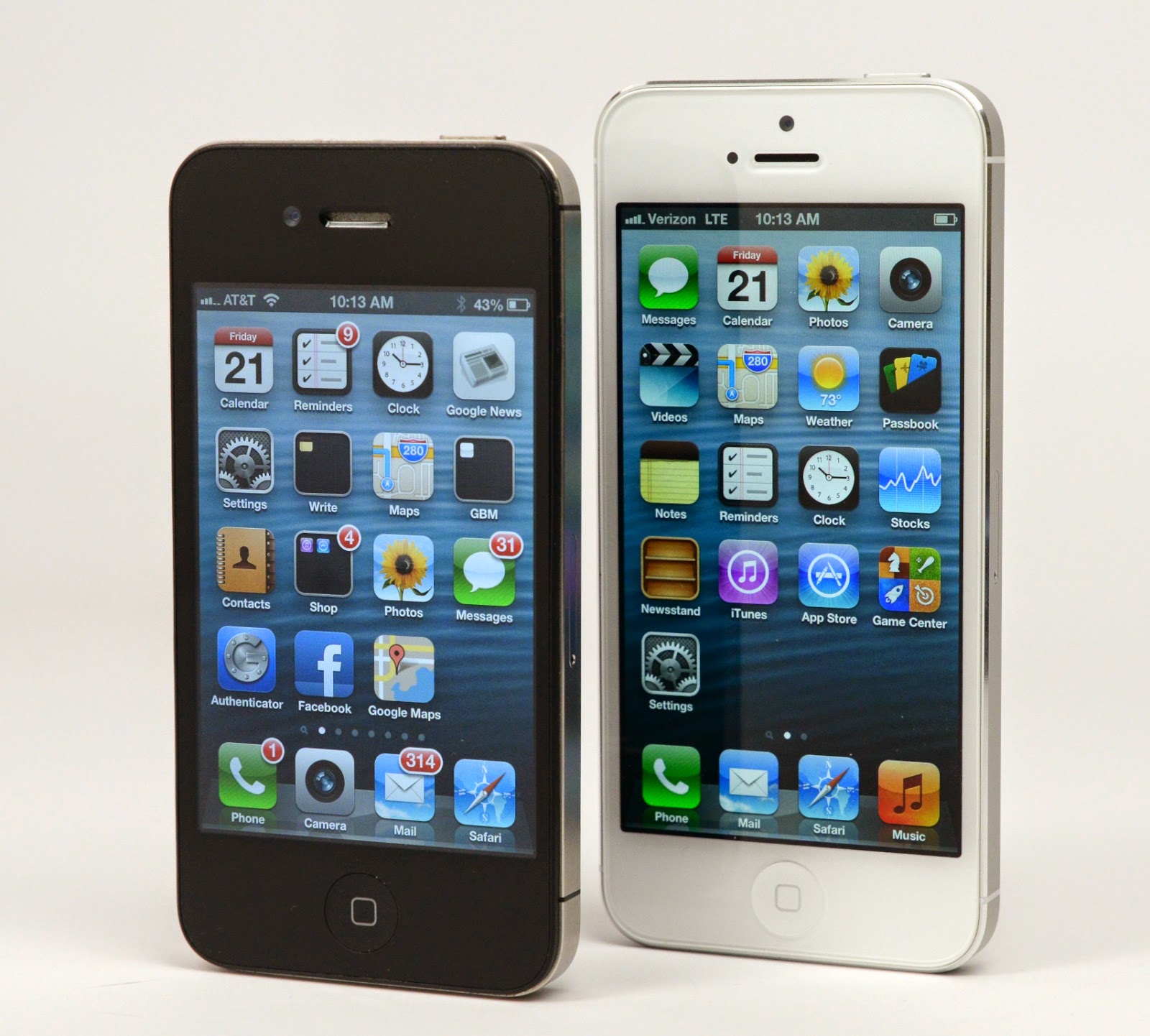
very first time and diving right in. By the nature of my work, I have a well-established routine for setting up a new phone when I review it. However, a phone that's going to stick around for awhile gets a little more forethought and effort.  Here are some great guidelines for newbies and pros alike. This isn't a "how-to", but more of a "what to do" kind of article.  I won't get into the step-by-step details about the phone, or advise you to download specific apps (of course you will). Rather, I'll point out some general categories you should think about when protecting and customizing your investment.


Tackle Your Settings -- All of Them
Beeps, chimes, and buzzes annoy me. When phones constantly chirp in an office environment, it can irritate coworkers, too.  So the very first thing I do when setting up a new phone is to adjust my volume profile, choose my ringtones, and shut down haptic feedback (unless it's on a Windows Phone -- that I can take). It's for my own sanity, and for the sanity of the people around me.

Depending on the phone, I also pull up settings from the keyboard to shut down key press tones and other haptic feedback.  But don't stop there. I recommend systematically going through the settings. Not only will you fine-tune your phone's behavior right from the very beginning, you'll also learn a tremendous amount about your handset's capabilities.

Phone-makers slip controls for the most interesting software extras in the settings menu, and sometimes in submenus as well. I always peruse this area from the get-go to learn about the more hidden options for everything from motion and gesture controls to call blocking.

This is also where you'll find any options for simple startup mode (found on some Android phones), a benefit for those people who prefer a less-cluttered way to experience Android. A setup wizard may also let you make this selection if it exists.


Check for Updates
Sometimes phones ship with one version of the operating system, but by the time it lands in your hands, there could be an update waiting in the wings. (Usually Androids)

This is an easy check from the Settings menu, so it's worth looking just to get the update out of the way, especially if it means restarting your phone.

Even if you don't have an OS update, it's worth checking for individual app refreshes for essential and preloaded programs. If there are more than a few of these, the update could take some time, or even require a reboot. I like to get this out of the way early because, especially with Android, updating apps like the Google Play Store, can somewhat alter the setup experience.


Secure Your Device
Loading up your new device with games, apps, and music sounds a lot more fun than taking the time to enact security measures on your device, but I can't stress how important it is to do this. Right now. Before you get distracted or forget.

There's a lot to remember in this category, check out this primer on security. It is very well done and laid out by OS.

It's important to know what all of your options are, and institute them. In the panic-inducing event that you misplace your phone or lose it to theft, a basic understanding of the measures you set up and how to remotely lock, track, and even wipe your phone will pay off more than you can imagine. This also goes for recovering your assets, like precious photos.

Hook Up To The Cloud!
Are you doing iCloud?  Microsoft OneDrive?  Dropbox?  Pick one!  But hey -- it might even be built in!  Your phone may alert you that you have the option of turning on cloud storage or syncing functionality for your contacts, calendar, photos, music, and so on. It's easy to dismiss these pop-ups in the pursuit of, say, choosing prettier wallpaper or theme colors, but as with updates and security, this is one of those things you should take care of sooner rather than later.

Not only are you making it smoother to share your assets among devices like your tablet and laptop, you're also taking a step toward safeguarding your digital property if you lose your phone, and making it easier to repopulate a future device with your photos and the like.

Likewise, you should also pay attention to prompts for syncing content, and specifically, you'll want to keep an eye on overly enthusiastic syncing features that you don't want turned on by default. Android phones are the main culprit here. If you don't watch what you press, your phone could upload all your photos online, turn on social networking, and generally overshare information you'd rather selectively distribute yourself.


Customize the Look and Feel
So you've secured your device and gotten to know your phone? Great. Now you should customize it.

Go nuts. Download new wallpaper, explore app launchers, group apps into folders, and jump into the world of rooting your phone and applying custom ROMs if you'd like.

Do keep in mind that if you go the rooting or jailbreaking route, you're violating your warranty, so this isn't an endeavor to attempt on a whim. The good news is that there's a tremendous amount of step-by-step tutorials and support articles on the Internet that can walk you through everything from gaining administrative access and installing ROMs to reverting your phone back to factory conditions. Still, it is a risk, so approach with caution.
One final area of customization I'd address are preloaded apps, better known as bloatware. Most of the time these won't budge; they were included as part of the phone-maker's agenda, or as part of a partnership agreement. Sometimes, though, you can force quit them, disable them, or with iOS and some Android phones, rearrange their icons into the dark recesses of your home screen or app tray to all but ignore them.


Plan For Resale
I don't blame you one bit if your dead-last instinct with your new phone is to think about its afterlife. But trust me, a year or two down the line -- or even longer -- you'll be thankful you did.

Especially if you wind up reselling your phone directly to another human (and not to an organization), you'll want to keep the box in good shape, and yep, those structural cardboard inserts, as well. It makes a better presentation that way, and the condition of your phone and its accoutrements can net you a higher sale price.
I'd also strongly recommend getting a sturdy case to protect your phone. This is as much for your day-to-day benefit as it is to safeguard the phone's resale value down the line. Sure, your own self-expression in choosing a case still takes precedent, but if you're going to wind up recouping your costs when you're ready to move on, you might as well get the most for your handset that you can with a case that actively shields the phone's vulnerable screen and corners, instead of just simply looking good.


~~~~
Bruce has worked in educational technology for over 17 years and has implemented several 1:1/BYOD programs.  He also has been a classroom teacher for various subjects.  Bruce is the author of five books: Sands of Time, Towering Pines Volume One:Room 509, The Star of Christmas, Philadelphia Story: A Lance Carter Detective Novel and The Insider's Story: A Lance Carter Detective Novel.  He also has a new novel coming out in June 2014, The Kill Commission.  Follow Bruce's Novel releases by subscribing to his FREE newsletter!