Showing posts with label wireless. Show all posts

Wednesday, July 23, 2014

Tips for Using Windows 8 in the Classroom


Myth: Windows 8 is scary and there's nothing out there for my classroom!
Reality: Windows 8 is intuitive and there is an ever-growing list of apps and web-enabled apps that work wonders!

Windows 8 Offers an Immersive Student Learning Experience 
Windows 8 helps schools improve educational outcomes, bring learning to life, and build 21st century skills.  Students interact with devices that have been specifically designed for both touch and mouse, mirroring their real-life experiences and supporting both personalized and collaborative learning inside and outside of the classroom. 

As schools increasingly move to digital content, apps are playing an important role. The Windows 8 app library for schools now includes popular products such as BrainPOP®, Khan Academy®, and Stack the States™, as well as digital textbooks and innovative new apps such as CK-12© math and science, iTooch, and 21st Century Learning Design. 

Many apps are available at no charge, and many have been developed first for Windows 8, with extensive 

support for Common Core and state standards. 

Utilize Award-winning Content Across the Curriculum 
The award-winning BrainPOP apps provide schools with free as well as subscription-based content on topics across the curriculum. They are aligned to Common Core and state standards and are searchable by topic or standard, with special apps available for K-3, ESL, and Spanish-speaking students. Teachers use BrainPOP to introduce a new lesson or topic, illustrate complex subject matter, or review information before a test, while also getting support through a free online learning community. Students find the BrainPOP movies and interactive activities highly engaging. 

Many Free Interactive Video Tutorials 
Khan Academy, another highly regarded app now available to Windows 8 schools, provides free access to high-quality video tutorials and assessments on math, science, and history. It brings lessons to life even for tough topics like advanced geometry and gives teachers great visibility into student progress. Students practice at their own pace, with problems broken down into detailed steps.  According to Anthony Salcito in a 2012 Microsoft in Education blog post, “Khan Academy is beautifully suited for the features of Windows 8. For example, while watching a video tutorial online or downloaded and used offline, students can take notes on their  computer or multitask on another project. Khan Academy for Windows 8 is designed to meet the learning realities of students head-on.”    

Math and Science Help Galore
An exciting new product line for Windows 8 schools looking to enhance the STEM curriculum comes from CK-12 Foundation.  These free high-quality math and science apps personalize learning and avoid the cost of quickly outdated print textbooks.  Rich content aligned to Common Core standards includes customizable digital textbooks called Flexbooks®.  Over 5,000 STEM concepts are available in different modalities such as video, practice, assessment, and real-world applications; collaborative class and study groups; and interactive practice.  According to Margo Day, Vice President, U.S. Education, Microsoft Corp, "These new CK-12 STEM applications for Windows 8 will make learning STEM subjects more engaging and personalized for the needs of individual students across the nation.”    

Oodles of New Apps just for Windows 8
Many applications designed specifically for schools are now being built first for Windows 8. Called the Teacher Collection, these apps take full advantage of Windows 8 functionality. They include:

  • 21st Century Learning Design, a collaborative project with Microsoft that assesses content against the six dimensions of 21st century learning
  • Markbook, for creating complex assessments and detailed reports
  • Lesson Plan Manager, for creating, delivering, and reporting on lessons
  • Scaffolder, for mapping out assessments, projects, or processes and exporting to other formats 
  • Random Student, for selecting individual students or groups 
Digital Textbooks Come to Windows 8
More and more eTextbooks are now available on Windows 8, from 
leading publishers such as Pearson, Houghton Mifflin Harcourt, 
McGraw-Hill, Chegg®, Kno™, and Adaptive Curriculum™. Students 
can search content, watch videos, interact with simulations, 
access web links, create personal study guides, and more.  
The expanding Windows 8 app library for schools supports a 
21st century learning environment and creates an immersive 
experience for students with a full range of functionality. Educators 
can meet new curriculum standards and requirements for 
online testing, while ensuring secure content management. 

I have worked with a number of different Windows 8 desktops, laptops and tablets.  Here are my recommendations for excellent hardware to run Windows 8 in your classroom!

The ASUS ME400C is a powerful, light and easy to use Windows 8 Tablet that runs the full version of Windows 8.
The Microsoft Surface RT is a great alternative that runs the Windows 8 RT version of the Operating System.

~
Bruce has worked in educational technology for over 17 years and has implemented several 1:1/BYOD programs.  He also has been a classroom teacher for various subjects.  Bruce is the author of five books: Sands of Time, Towering Pines Volume One:Room 509, The Star of Christmas, Philadelphia Story: A Lance Carter Detective Novel and The Insider's Story: A Lance Carter Detective Novel.  Follow Bruce's Novel releases by subscribing to his FREE newsletter!

Monday, June 23, 2014

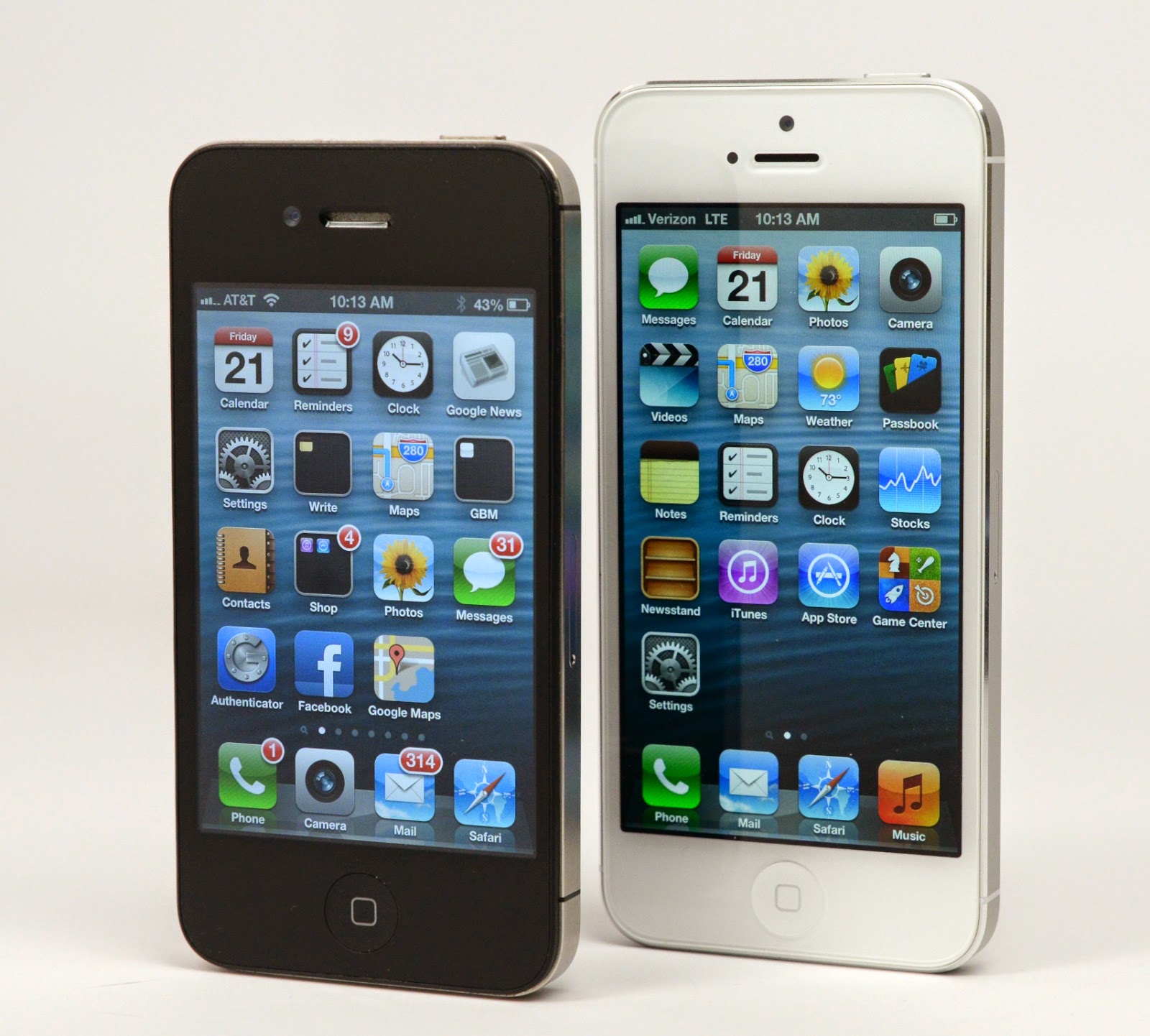
Got a new Smart Phone? Start HERE!

If you are into techie stuff like me, few things top the excitement of powering up a brand new smartphone for the

very first time and diving right in. By the nature of my work, I have a well-established routine for setting up a new phone when I review it. However, a phone that's going to stick around for awhile gets a little more forethought and effort.  Here are some great guidelines for newbies and pros alike. This isn't a "how-to", but more of a "what to do" kind of article.  I won't get into the step-by-step details about the phone, or advise you to download specific apps (of course you will). Rather, I'll point out some general categories you should think about when protecting and customizing your investment.


Tackle Your Settings -- All of Them
Beeps, chimes, and buzzes annoy me. When phones constantly chirp in an office environment, it can irritate coworkers, too.  So the very first thing I do when setting up a new phone is to adjust my volume profile, choose my ringtones, and shut down haptic feedback (unless it's on a Windows Phone -- that I can take). It's for my own sanity, and for the sanity of the people around me.

Depending on the phone, I also pull up settings from the keyboard to shut down key press tones and other haptic feedback.  But don't stop there. I recommend systematically going through the settings. Not only will you fine-tune your phone's behavior right from the very beginning, you'll also learn a tremendous amount about your handset's capabilities.

Phone-makers slip controls for the most interesting software extras in the settings menu, and sometimes in submenus as well. I always peruse this area from the get-go to learn about the more hidden options for everything from motion and gesture controls to call blocking.

This is also where you'll find any options for simple startup mode (found on some Android phones), a benefit for those people who prefer a less-cluttered way to experience Android. A setup wizard may also let you make this selection if it exists.


Check for Updates
Sometimes phones ship with one version of the operating system, but by the time it lands in your hands, there could be an update waiting in the wings. (Usually Androids)

This is an easy check from the Settings menu, so it's worth looking just to get the update out of the way, especially if it means restarting your phone.

Even if you don't have an OS update, it's worth checking for individual app refreshes for essential and preloaded programs. If there are more than a few of these, the update could take some time, or even require a reboot. I like to get this out of the way early because, especially with Android, updating apps like the Google Play Store, can somewhat alter the setup experience.


Secure Your Device
Loading up your new device with games, apps, and music sounds a lot more fun than taking the time to enact security measures on your device, but I can't stress how important it is to do this. Right now. Before you get distracted or forget.

There's a lot to remember in this category, check out this primer on security. It is very well done and laid out by OS.

It's important to know what all of your options are, and institute them. In the panic-inducing event that you misplace your phone or lose it to theft, a basic understanding of the measures you set up and how to remotely lock, track, and even wipe your phone will pay off more than you can imagine. This also goes for recovering your assets, like precious photos.

Hook Up To The Cloud!
Are you doing iCloud?  Microsoft OneDrive?  Dropbox?  Pick one!  But hey -- it might even be built in!  Your phone may alert you that you have the option of turning on cloud storage or syncing functionality for your contacts, calendar, photos, music, and so on. It's easy to dismiss these pop-ups in the pursuit of, say, choosing prettier wallpaper or theme colors, but as with updates and security, this is one of those things you should take care of sooner rather than later.

Not only are you making it smoother to share your assets among devices like your tablet and laptop, you're also taking a step toward safeguarding your digital property if you lose your phone, and making it easier to repopulate a future device with your photos and the like.

Likewise, you should also pay attention to prompts for syncing content, and specifically, you'll want to keep an eye on overly enthusiastic syncing features that you don't want turned on by default. Android phones are the main culprit here. If you don't watch what you press, your phone could upload all your photos online, turn on social networking, and generally overshare information you'd rather selectively distribute yourself.


Customize the Look and Feel
So you've secured your device and gotten to know your phone? Great. Now you should customize it.

Go nuts. Download new wallpaper, explore app launchers, group apps into folders, and jump into the world of rooting your phone and applying custom ROMs if you'd like.

Do keep in mind that if you go the rooting or jailbreaking route, you're violating your warranty, so this isn't an endeavor to attempt on a whim. The good news is that there's a tremendous amount of step-by-step tutorials and support articles on the Internet that can walk you through everything from gaining administrative access and installing ROMs to reverting your phone back to factory conditions. Still, it is a risk, so approach with caution.
One final area of customization I'd address are preloaded apps, better known as bloatware. Most of the time these won't budge; they were included as part of the phone-maker's agenda, or as part of a partnership agreement. Sometimes, though, you can force quit them, disable them, or with iOS and some Android phones, rearrange their icons into the dark recesses of your home screen or app tray to all but ignore them.


Plan For Resale
I don't blame you one bit if your dead-last instinct with your new phone is to think about its afterlife. But trust me, a year or two down the line -- or even longer -- you'll be thankful you did.

Especially if you wind up reselling your phone directly to another human (and not to an organization), you'll want to keep the box in good shape, and yep, those structural cardboard inserts, as well. It makes a better presentation that way, and the condition of your phone and its accoutrements can net you a higher sale price.
I'd also strongly recommend getting a sturdy case to protect your phone. This is as much for your day-to-day benefit as it is to safeguard the phone's resale value down the line. Sure, your own self-expression in choosing a case still takes precedent, but if you're going to wind up recouping your costs when you're ready to move on, you might as well get the most for your handset that you can with a case that actively shields the phone's vulnerable screen and corners, instead of just simply looking good.


~~~~
Bruce has worked in educational technology for over 17 years and has implemented several 1:1/BYOD programs.  He also has been a classroom teacher for various subjects.  Bruce is the author of five books: Sands of Time, Towering Pines Volume One:Room 509, The Star of Christmas, Philadelphia Story: A Lance Carter Detective Novel and The Insider's Story: A Lance Carter Detective Novel.  He also has a new novel coming out in June 2014, The Kill Commission.  Follow Bruce's Novel releases by subscribing to his FREE newsletter!

Monday, June 2, 2014

Mimio's MimioTeach plus Mobile

As someone who has worked in educational technology for quite a bit of time, I've seen the idea of "smart boards" evolve from big, heavy, prohibitively-expensive boards that required tethered pens and hard wired serial cable connection to today's less expensive, lighter and wireless options.  However, over that time a few things have become clear about the technology.  First and foremost is that teachers love it when they know how to use it, but beyond two a big issues are placement and supplies!  The board location is great for one teacher, but the other one hates it... and those darned pens!  They keep breaking or disappearing!  I've worked at schools where a smart board pen is more valuable than access to good coffee -- and that's saying something!

One of the products that seeks to rectify those two issue is made by a company called Mimio.  Mimio has several products, but the one that I have used most often is the Mimio Teach.  While this particular product does not solve the pen issue (they do have products that address this), it is magnetic -- which makes it highly portable!  You can move it on any surface that is metallic at all (yes, that includes standard marker-based white boards), and all you need to do it point a projector at it and calibrate.  They can be wireless to your computer -- so no tethering based on computer location is not necessary, and they work with a myriad of software (not just Mimio's).  And the last selling point I'll mention, and perhaps most important to some, is the cost.  You can get 2-3 Mimio Teach setups for the cost of one good interactive white board.  That means more interactivity and training for your buck!  

But, my post today isn't really about that.  It is about the wonderful infographic that Mimio recently released regarding the increase and trends of mobile device use in education.  How does this tie into interactive classroom technology?  In every way!  The increase in mobility has a direct impact on how we think about and use things like interactive whiteboards and other similar technologies.

So -- take a look and enjoy!


~~~~
Bruce has worked in educational technology for over 17 years and has implemented several 1:1/BYOD programs.  He also has been a classroom teacher for various subjects.  Bruce is the author of five books: Sands of Time, Towering Pines Volume One:Room 509, The Star of Christmas, Philadelphia Story: A Lance Carter Detective Novel and The Insider's Story: A Lance Carter Detective Novel.  He also has a new novel coming out in June 2014, The Kill Commission.  Follow Bruce's Novel releases by subscribing to his FREE newsletter!
Thursday, May 15, 2014

Find My MAC Address - Keys to Running Your Wireless Network

Running a wireless network can be a challenging endeavor in the educational technology space.  I've written a couple of BLOG posts on evaluation and maintenance issues that the normal wireless network might have in education, but there is (obviously) more to it than simply selecting and implementing the correct system.

One of the biggest questions I answer in my day-to-day is in regards to security.  And, as with anything else, there is more than one way to skin a cat.  One of the more popular methods is using MAC Address based authentication.  The MAC (Media Access Control) Address is an alphanumeric value that is unique to your network adapter.  It looks something like this: 00:23:1h:1q:rj:56.  That means that no other computer, anywhere in the world, has the same address.  This address is burned into a chip on the network adapter itself, so you cannot change it.  This makes it a great way of securing and identifying computers on your network.

However, the administrative overhead to this method can be quite cumbersome -- especially when your technology support person wears many hats.  And when you may have more than one device and/or operating system in your environment.  So, in an effort to help you save some time -- here is a quick list on how to find the MAC address on just about any device.

Windows Vista, Windows 7 and Windows 8 (there may be slight variances)

  • Click the Start icon
  • Click Control Panel
  • Select Classic View
  • Click Network and Sharing Center
  • Select Manage Network Connections from the list on the left hand side
  • Right click on the connection you are trying to find the MAC address for and select Properties – you will have a separate MAC address for your wireless card and your Ethernet (LAN) card. Make sure you use the correct one.
Apple OS X
  • Click the Apple in the Upper Left Corner
  • Click System Preferences
  • Double Click on the Network Icon
  • Select the Wi-Fi Adapter
  • Click Advanced, the MAC Address will be at the bottom of the dialog box.
Apple iOS
  • Open Settings
  • Open General
  • Open About
  • The Wi-Fi Address is towards the bottom, that is the MAC Address
Android (generally)
  • Go to Settings
  • Select About Phone
  • Select Status
  • On the list that appears look for Wi-Fi MAC Address towards the bottom.


~~~~
Bruce has worked in educational technology for over 17 years and has implemented several 1:1/BYOD programs.  He also has been a classroom teacher for various subjects.  Bruce is the author of five books: Sands of Time, Towering Pines Volume One:Room 509, The Star of Christmas, Philadelphia Story: A Lance Carter Detective Novel and The Insider's Story: A Lance Carter Detective Novel.  He also has a new novel coming out in June 2014, The Kill Commission.  Follow Bruce's Novel releases by subscribing to his FREE newsletter!